How to Host Your Live Session: One Community Strategy
The one community strategy is the simplest way to go live. If you only have a free community right now, or if you are just getting started and do not have a large audience yet, this is the method for you. You go live natively inside your community using the Go Live button — no Zoom, no stream keys, no dual-tab setup. This article walks you through the entire process in 5 steps. Quick note: This setup uses your community inside HighLevel. My Vision Agency is the white label brand of HighLevel, so whether you use your own HighLevel account or an MVA-branded one through us, the steps work the exact same way.
What you'll learn
- When to use the one community strategy (and when to switch to two)
- How to copy your Pre-Live content from MVA
- How to start a native live stream inside your community
- Where your recording is automatically saved after the session
- The upgrade path to the two community strategy
When to Use This Strategy
The one community strategy is the simpler of the two live session methods. Here is when it makes sense:
- You are just getting started and do not have a paid community yet
- Your audience is small and you want a simple workflow you can master before adding complexity
- You do not have a paid Zoom account (custom streaming requires a paid Zoom plan)
- You want zero setup time before each session — just hit Go Live and start teaching
The trade-off: The one community strategy is easier to run, but it does not create the FOMO between free and paid members that drives Glass Wall conversions. Once you have built up an audience and added a paid offer, switch to the Two Community Strategy for stronger conversion rates. Aim for that upgrade — it is where the real growth happens.
Before You Start
Have these ready before you go live:
- Your Free Community Post already generated from the Pre-Live Content page in MVA (title and body)
- Your community open in one browser tab
- About 2 minutes of setup time before your scheduled start
That's it. No Zoom. No stream keys. No second browser tab.
The Step-by-Step Walkthrough
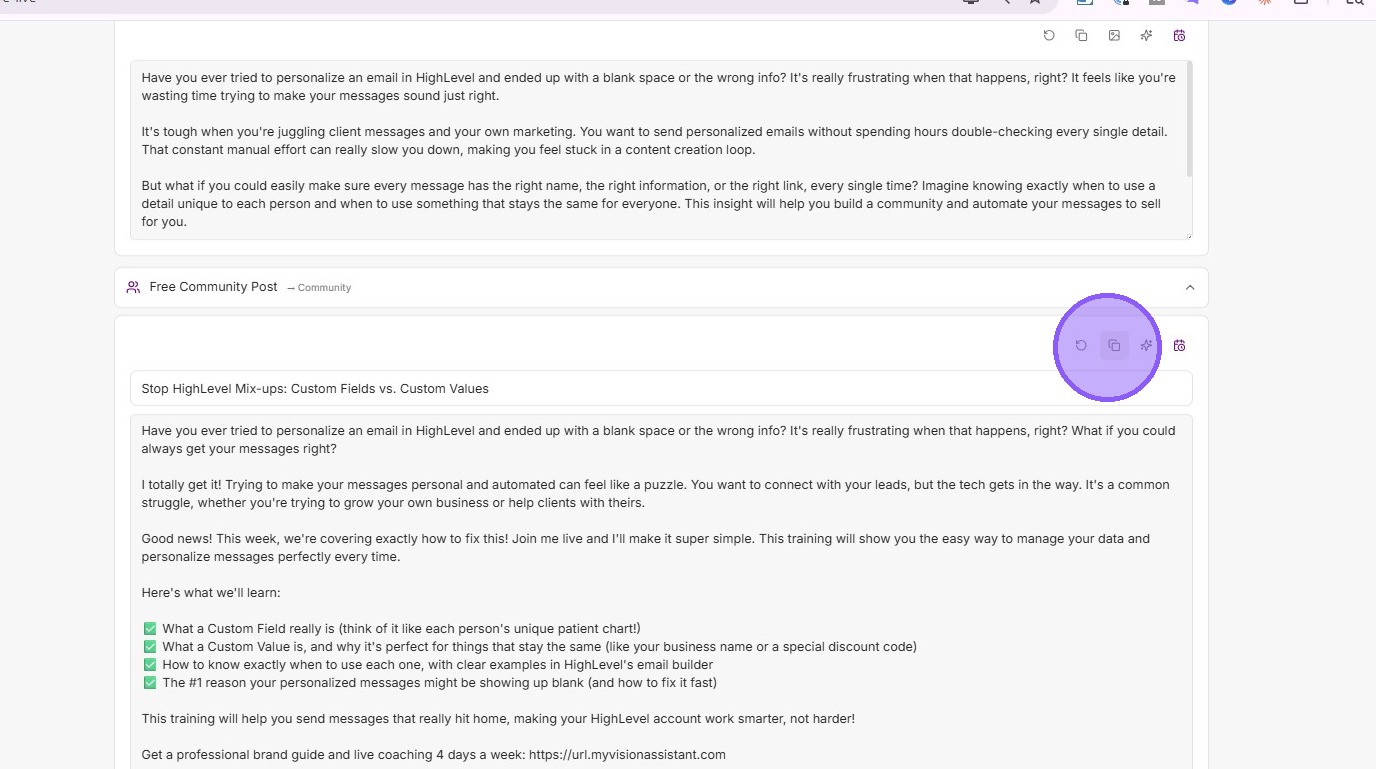
1. Copy your Free Community Post from MVA
Inside My Vision Assistant, head to the Pre-Live page and copy your generated Free Community Post — both the title and the body.
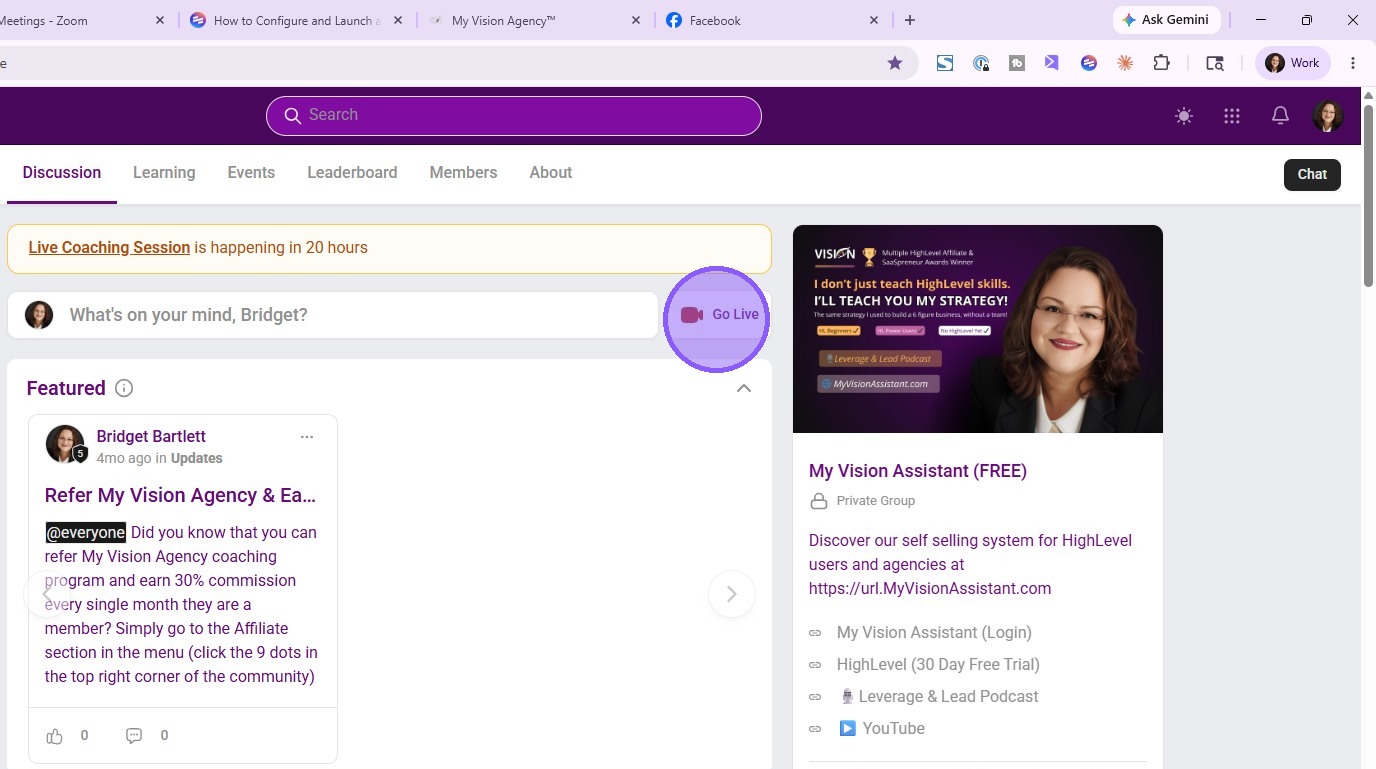
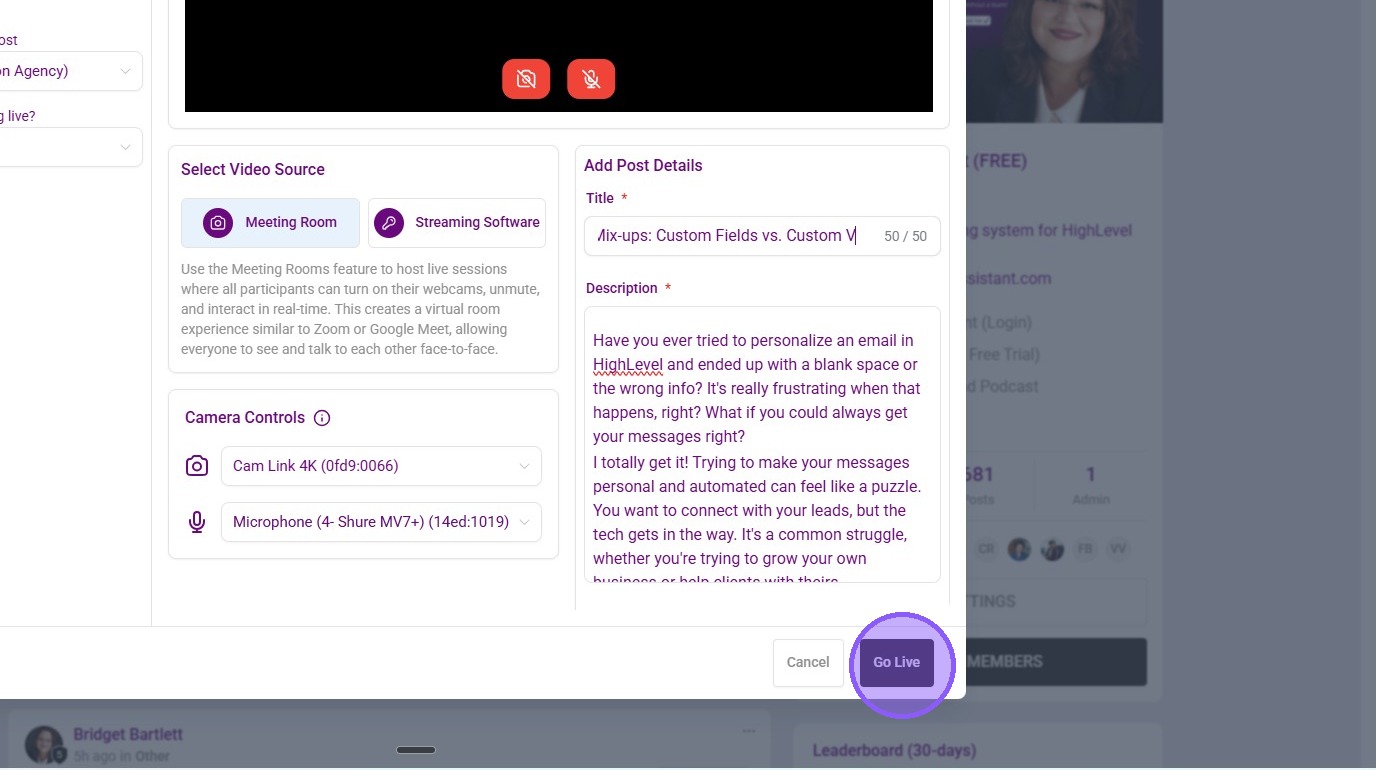
2. Click "Go Live" inside your free community
When you are ready to start your session, head into your free community and click the Go Live button.

3. Paste your copied content into the Description field
The post your members see needs the context from your Pre-Live content. Paste the title and body into the Description field so members know exactly what you are about to teach.
4. Click "Go Live" to start broadcasting
This is the moment you go live. Your community members get notified and can join the stream immediately.
5. Your session is automatically recorded
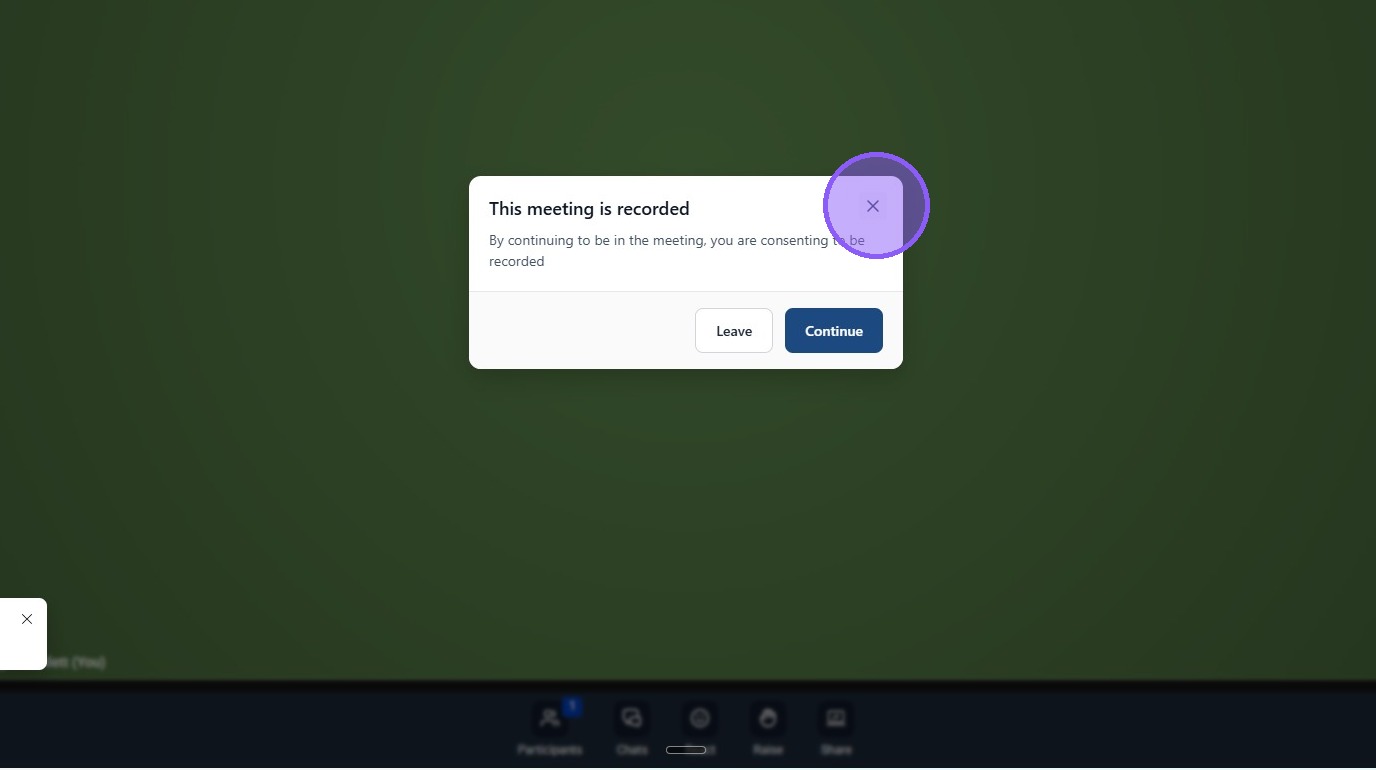
After your live ends, the recording is automatically saved inside the recording area of your client portal. You can download it from there and use it in the Post-Live workflow to generate your YouTube video and blog post.
The Upgrade Path
The one community strategy is a great starting point, but it is not the end goal. Here is what you are missing compared to the two community setup:
- No FOMO between free and paid members. Everyone in your community has the same experience — there is no visible upgrade gap to motivate paying customers.
- No real-time interaction. Native community streams are usually one-way (you broadcast, they watch). The Zoom-based two community strategy lets paid members ask questions out loud and engage with you live.
- No Glass Wall conversions. The Glass Wall — where free members watch paid members get coached and want in — only works when there is a visible difference between the two experiences.
Once you have an audience built up and a paid offer in place, switch to the Two Community Strategy. That is when the content workflow really starts paying for itself.
What This Setup Unlocks
Even without the FOMO engine, the one community strategy still gives you:
- A live training delivered to your audience with zero complex setup
- An automatic recording saved to your client portal for later use
- A transcript-ready video for the Post-Live workflow (transcript becomes blog + YouTube)
- Real know-like-trust building with the people inside your community
One live = one self-selling system, even on the simpler setup. Stop trading your life for a paycheck. Get reps in. Build the audience. Then upgrade.
Frequently Asked Questions
How do I know when to switch to the Two Community Strategy?
Two signs: (1) You have launched a paid offer and have customers in your paid community. (2) Your free community is consistently getting engagement on your live sessions. When both are true, the two community strategy will convert better than the one community version.
Can my free community members ask questions during the live?
Yes, through the community chat or comments during the live stream. It is not the same as the Zoom-style live Q&A, but it works for written questions you can answer out loud.
Where does my recording live after the session ends?
Inside the recording area of your client portal. It is saved automatically — you do not have to do anything to capture it. Download it from there when you are ready to process the Post-Live content.
Do I need a paid HighLevel plan to use Go Live in my community?
Check your HighLevel plan features to confirm Go Live is available on your tier. Most active plans include it.
Can I run this strategy if my Pre-Live content was generated for the Two Community workflow?
Yes. The Free Community Post from your Pre-Live workflow works perfectly for the one community strategy too. You just use the free community version of the post and skip the paid community post entirely.
How do I get a transcript from a native community recording?
Download the recording from your client portal, then upload it to a transcription tool like Descript, Riverside, or any other video editor that produces transcripts. From there, follow the Post-Live workflow to generate your blog post and YouTube content.
What if I want some of the benefits of two communities without the full setup?
You can post your Main Offer CTA inside the community post and inside your live description. Free members watching the training will see the upgrade path. It is not as strong as the FOMO of two communities, but it is better than no CTA at all.
Should I still use the Pre-Live and Post-Live workflows with this strategy?
Absolutely. The one community strategy only changes the During Live step. Pre-Live (topic + promotional content) and Post-Live (transcript → blog + YouTube) still happen exactly the same way.
Ready to upgrade to the Two Community Strategy?
Hop into live coaching 4 days a week. We help you build the full workflow live.
Join Live Coaching →