
How to Use Your Support Center
The Support Center inside My Vision Assistant is where you go for help — billing questions, bug reports, whitelabel issues, or even your own private client ticket management. There are four different support paths, each routed to a different team for the fastest possible response. Pick the right path for what you need, and you skip the back-and-forth that slows everything down. This article walks you through what each path is for, where it goes, and how to use the system.
What you'll learn:
- Where to find the Support Center inside MVA
- The four support paths and what each one is for
- Who responds to each type of ticket
- How to track your open and resolved tickets
- How to read and reply to ticket responses
Where to Find the Support Center
Inside My Vision Assistant, look at the left-hand navigation menu and click Support. That takes you to the Support Center dashboard where you can submit new tickets, track existing ones, and reply to responses.
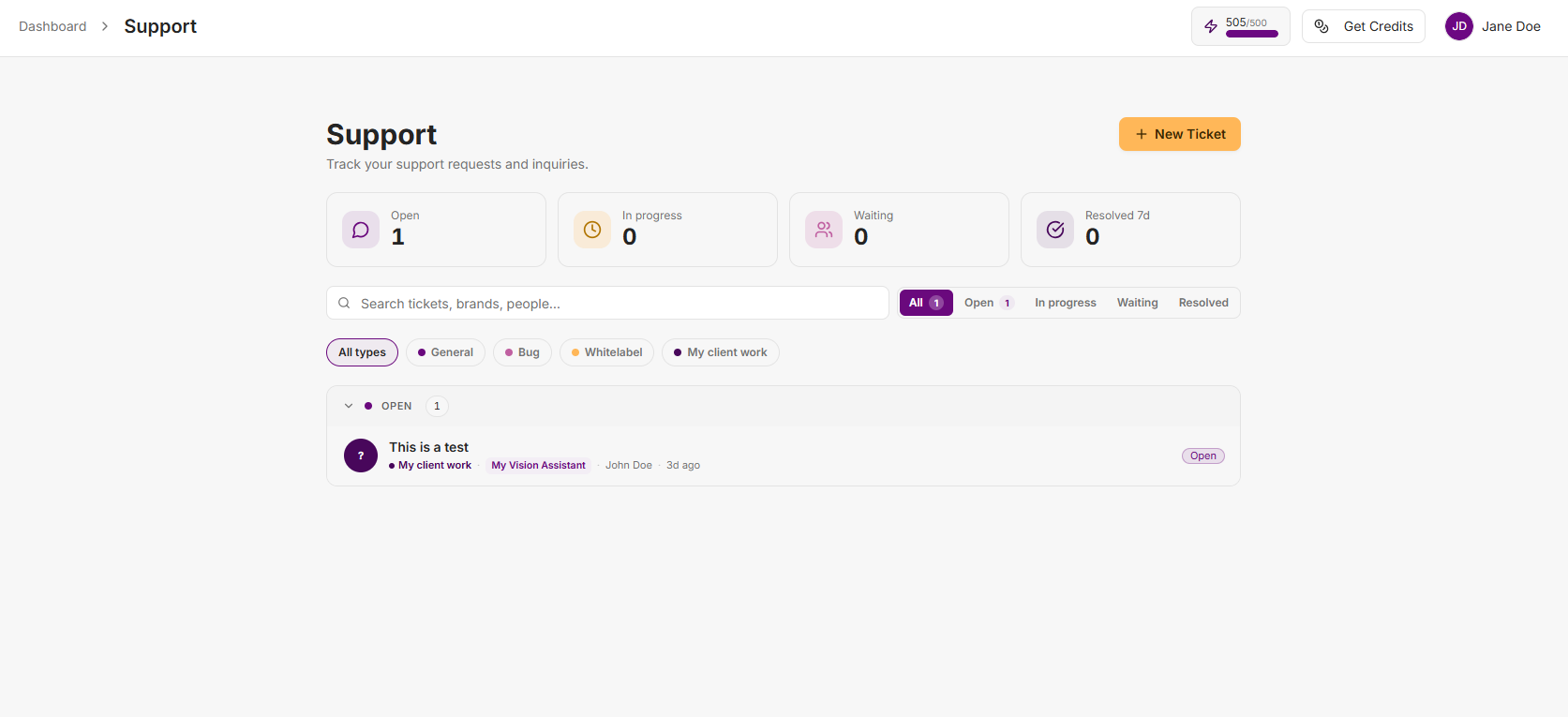
At the top of the page, you will see four status counters that show you how your tickets are doing:
- Open — new tickets waiting to be picked up
- In progress — tickets actively being worked on
- Waiting — tickets waiting on a response from you
- Resolved 7d — tickets resolved in the last 7 days
Below the counters, you can search tickets, filter by status, and filter by type (General, Bug, Whitelabel, or My client work).
The Four Support Paths
When you click the + New Ticket button in the top right, a window opens that asks "How can we help?" with four routing options. Each option sends your ticket to a different team for the fastest response. Pick the right path so your ticket goes straight to the person who can solve it.
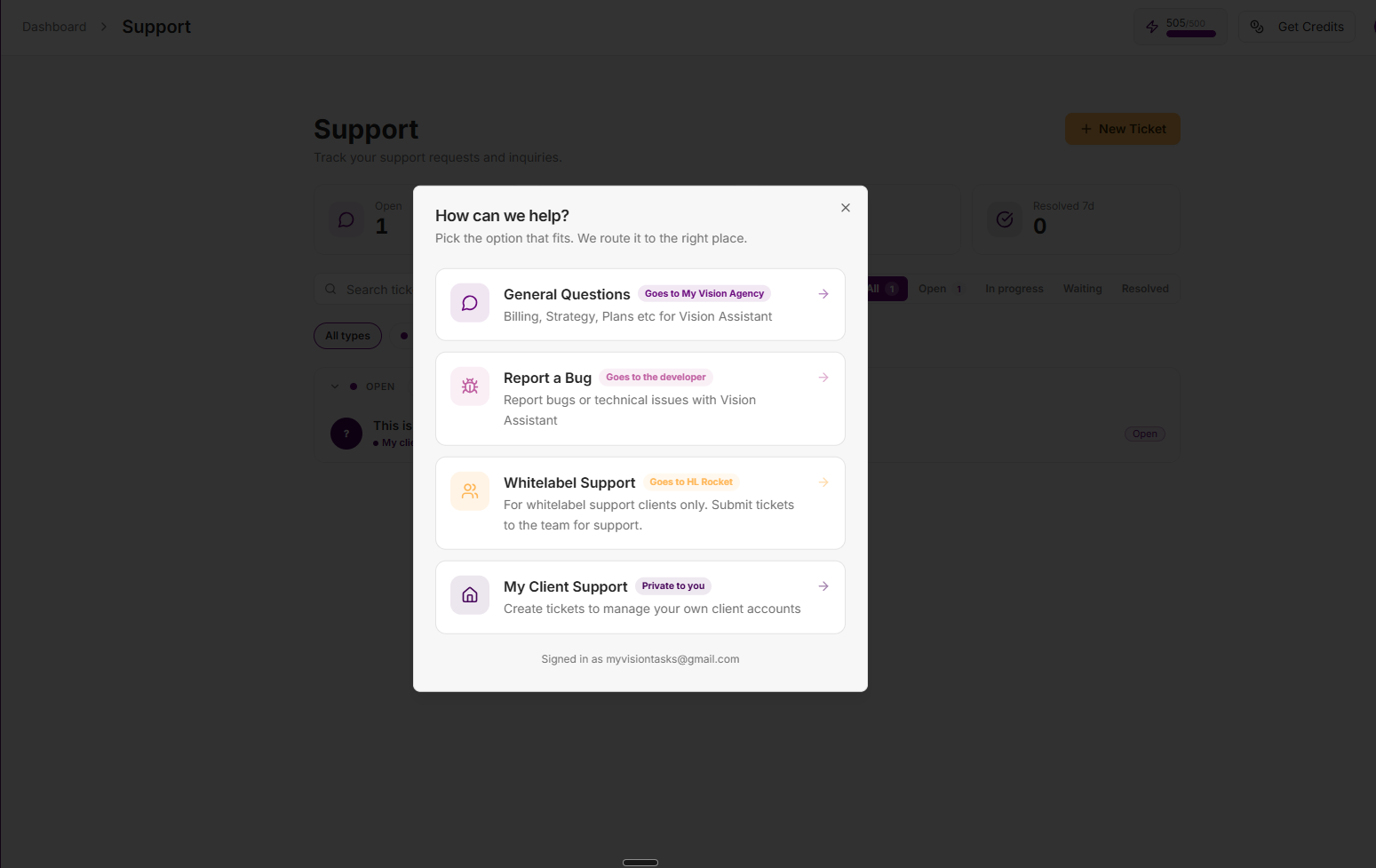
1. General Questions — Goes to My Vision Agency
Use this path for anything related to:
- Billing and payment questions
- Strategy questions about how to use MVA
- Plan changes, upgrades, or downgrades
- Questions about the Vision Assistant tools
- Community access or information
- Questions about our program or any of the tools we offer
Anything you would normally ask the My Vision Agency team, this is the path for it. Tickets go directly to us for a response.
2. Report a Bug — Goes to the Developer
Use this path only for technical issues. If you notice an error, something not loading, a feature that is not working the way it should, or any other technical glitch — submit a bug report.
Why this path goes straight to the developer: Bug reports are routed directly to the developer to speed up support. You skip the step of waiting on us to triage and forward — the person who can fix the bug sees it first. We trust your judgment on what is a bug. If something feels broken, report it here.
3. Whitelabel Support — Goes to HL Rocket
Use this path only if you have purchased the HL Rocket whitelabel support plan. This is the dedicated support channel for whitelabel clients to work with HL Rocket on managing support for their own team or their own paying clients.
If you have not purchased the HL Rocket whitelabel support plan, ignore this path — it does not apply to you.
4. My Client Support — Private to You
This path is completely different from the others. It is not where you ask for help — it is where you create and manage your own support tickets for your own clients.
Important — this is a whitelabel system: My Client Support is completely white labeled. All communications come from support@AssistantNotification.com. Nothing is branded with My Vision Assistant. The My Vision Agency team does NOT manage these communications, does NOT have access to your client tickets, and does NOT see anything in this section. This is 100% self-serve and 100% private to you and your clients.
Use this path when:
- You run your own agency and need a support ticket system for your clients
- You want to manage tasks or to-dos for your own work
- You need a private, unbranded support inbox for client communications
How to Submit a Ticket
- Click + New Ticket in the top right of the Support Center.
- Pick the path that fits your issue from the four options.
- Fill out the ticket form with as much detail as possible — the more context you give, the faster you get a useful response.
- Attach any screenshots or files if they help explain the issue (you can attach up to 5 files, 10 MB each).
- Submit the ticket.
You can track your ticket inside the Support Center dashboard and the team handling it will reply when they have an update.
How to Read and Reply to a Ticket
When you click on an existing ticket, a side panel opens with the full ticket details.
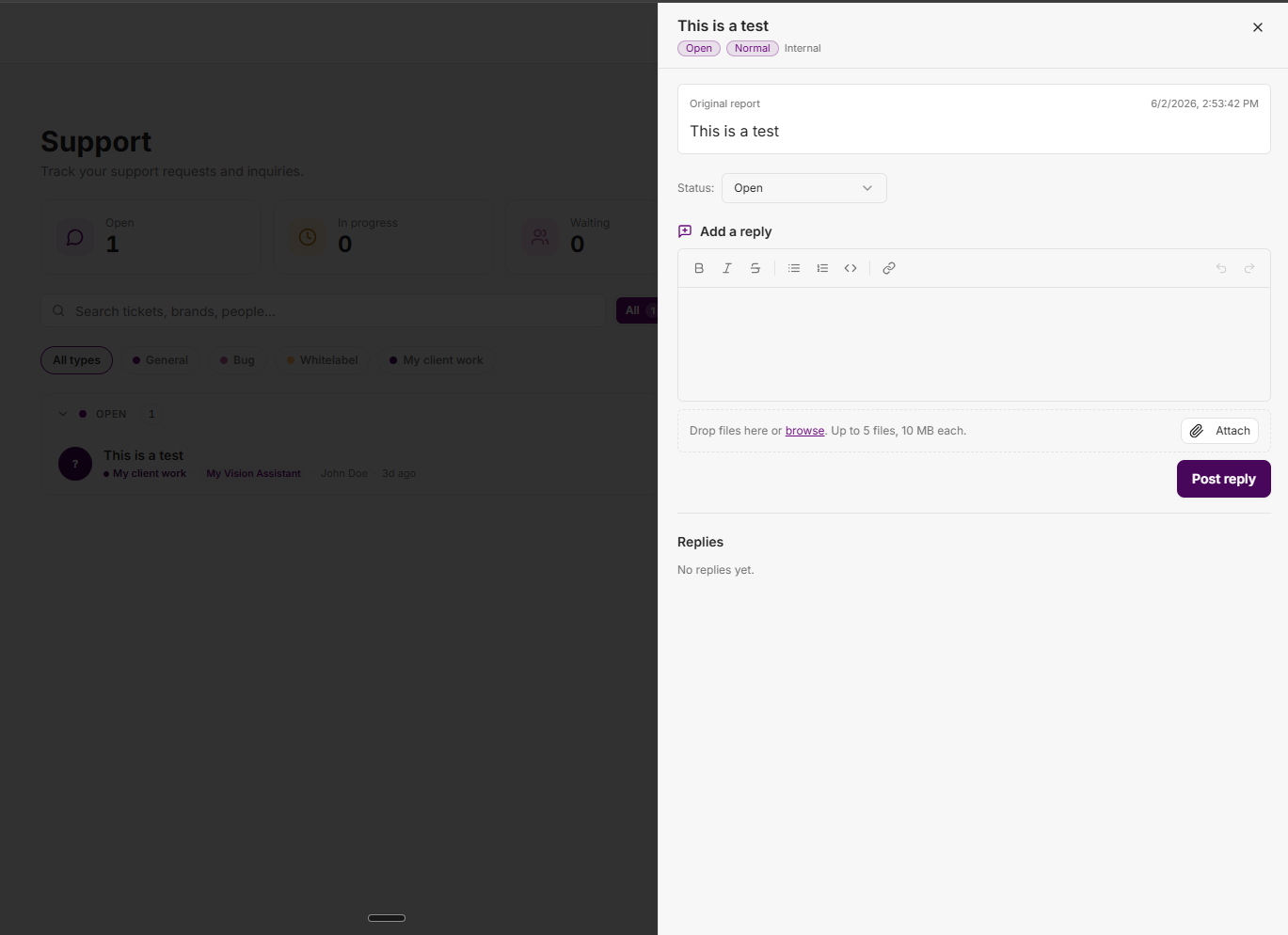
Inside the panel you can:
- See the original report with the timestamp it was submitted
- Change the status using the Status dropdown (Open, In progress, Waiting, Resolved)
- Add a reply using the rich text editor — supports bold, italic, lists, code blocks, and links
- Attach files to your reply (drop files into the editor or click "browse")
- Read previous replies in the Replies section below the editor
When you have something to add, type it in the editor and click Post reply. The team handling the ticket gets notified.
How to Pick the Right Path
Use this quick decision guide when you are not sure which path to pick:
- Question about billing, strategy, plans, or how to use MVA? → General Questions
- Something is broken or showing an error? → Report a Bug
- You purchased the HL Rocket whitelabel plan and need their support? → Whitelabel Support
- You need to manage tickets for your OWN clients? → My Client Support
Picking the right path means your ticket lands in the right inbox the first time — no rerouting, no waiting, faster fix.
Frequently Asked Questions
How fast will someone respond to my ticket?
Response times depend on the path. Bug reports go straight to the developer, so they tend to be fastest. General Questions go to the My Vision Agency team and are usually answered within a business day. Whitelabel Support response times are set by HL Rocket. My Client Support is self-serve — you set your own response time for your own clients.
What if I submit a ticket in the wrong path?
We will reroute it if we can, but it adds a delay. Always pick the right path the first time using the decision guide above.
Can I see tickets my clients have submitted to My Client Support?
Yes — My Client Support is your own private system, so you see everything your clients submit. Remember though that the My Vision Agency team has no visibility into this section.
Why does My Client Support use a different email domain?
Because it is whitelabel. Communications come from support@AssistantNotification.com so your clients do not see anything branded with My Vision Assistant. Your clients think the support system is yours — and it is.
What counts as a "bug" versus a "general question"?
A bug is something that is broken — a feature not working, an error message, content not loading, a button not responding. A general question is something that is working as expected but you need help understanding how to use it. When in doubt, if something looks broken, submit a bug.
Can I attach screenshots or files to my ticket?
Yes. You can attach up to 5 files, 10 MB each, both when submitting a ticket and when replying to one. Screenshots are especially helpful for bug reports.
Can I see all my past tickets, including resolved ones?
Yes. Use the Resolved filter at the top of the Support Center dashboard to see all resolved tickets, or use the search bar to find a specific one.
What if my issue is urgent and I cannot wait for a ticket response?
Hop into live coaching. We run live coaching 4 days a week and that is the fastest way to get unstuck on something time-sensitive.
Still stuck after submitting a ticket?
Hop into live coaching 4 days a week. We unblock you live.
Join Live Coaching →